Populate Journal Wand Template
Once the Journal Wand template has been created, the journal data can be populated directly into the template. One or more journal headers can be populated on a sheet, and each journal header may contain one or more lines.
Adding and Removing Rows
To insert additional rows in the template, perform the following steps:
- Highlight (select) one or more rows, starting from the row above which the new rows should be inserted
- Right-click and select Insert
To insert a single row, highlight just one row before clicking Insert. To insert multiple rows, highlight the same number of rows that are required to be inserted before clicking Insert. Below is an example of inserting 5 additional rows above row 12:
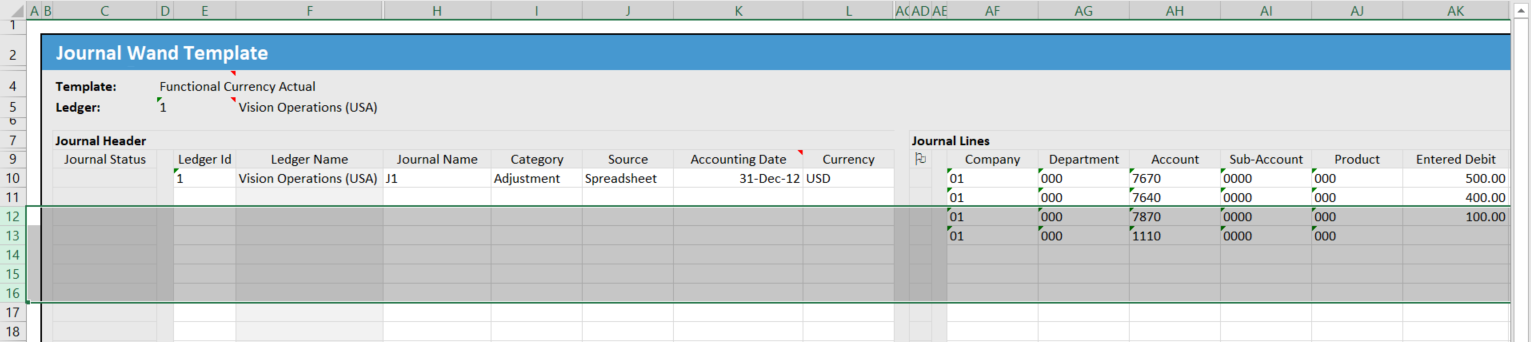
Similarly, to remove rows from the template select one or more rows, right-click and select Delete.
Lists of Values
Lists of Values are associated with certain cells or journal fields. Their presence is indicated by the “LOV” comment in the cell, which can be seen when clicking on the cell:

To invoke the List of Values, double click in the cell or select the Show option on the Journal Wand ribbon. See List of Values for more information.
The Account Combinations tool may be used to select an existing account combination for the journal line.
The Descriptive Flexfields tool may be used to populate descriptive flexfield values for the journal line.
The Journal Attachments tool may be used to capture attachments for the journal.
Data Type Compliance
Certain journal fields expect their data to comply with a specific data type, for example, numeric or date values. The following is a list of these fields:
| Journal Field | Required Data Type |
|---|---|
| Ledger Id | Numeric (Integer) |
| Accounting Date | Date |
| Conversion Date | Date |
| Conversion Rate | Numeric |
| Reversal Date | Date |
| Entered Debit | Numeric |
| Entered Credit | Numeric |
| Accounted Debit | Numeric |
| Accounted Credit | Numeric |
| Invoice Date | Date |
| Invoice Amount | Numeric |
| Reference Date | Date |
| Statistical Amount | Numeric |
Journal Headers and Lines
On a Journal Wand template, the population of data in any one of the key journal header fields signifies a new journal header. If all key header fields are unpopulated, then the corresponding journal line is grouped with the journal header defined above it. The key header fields are:
- Ledger
- Category
- Source
- Accounting Date
- Period
- Currency
- Batch Name
- Journal Name
In the example below, three journal headers are defined, each comprising two journal lines.

Journal header details may be populated for each journal line on the template and these details may be the same or different for each line. In the example below, each of the six headers defined comprise a single journal line.
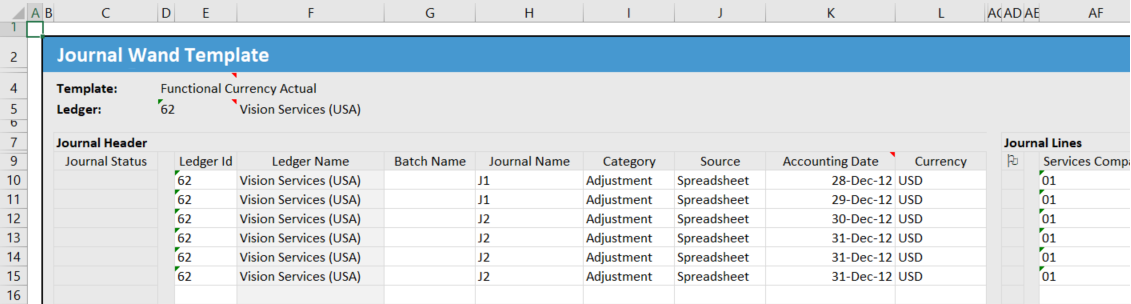
The fact that a journal header comprises only a single line, does not imply that a single-line journal will be created in Oracle. During the upload process, headers identified on the template are grouped into “target” journals according to the same rules applied by the Journal Import request, therefore multiple template headers may result in the creation of a single journal in Oracle. Refer to Grouping of Journal Headers into Target Journals.
Template Totals
The template-level totals for the columns Entered Debit, Entered Credit, Accounted Debit and Accounted Credit, are calculated using the Excel SUM function of the (unrounded) line values. There are conditional formatting rules on the Entered Debit and Credit totals so that they display in red if they are not equal. Likewise, there are conditional formatting rules on the Accounted Debit and Credit values. You may modify the formula for calculating the template-level totals and the conditional formatting rules.
