Descriptive Flexfields
The Descriptive Flexfields tool allows you to capture and edit descriptive flexfield values for the selected journal line. The captured values are then populated in the descriptive flexfield columns for the row in which the cursor is currently positioned, and these columns are automatically displayed on the template.
To invoke the Descriptive Flexfields tool, there must be a valid Journal Wand template open and active, and data values must be populated in one or more of the account segment columns (this signifies to Journal Wand that there is a row in the template to be read). If the aforementioned criteria are not met, an error is displayed:
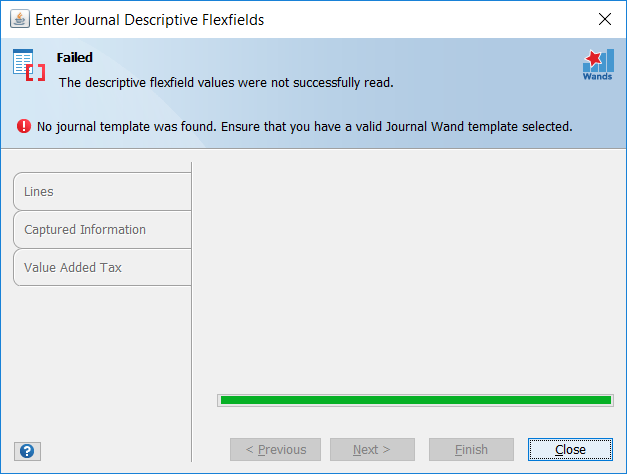
Prior to opening the tool, ensure that the row in which the descriptive flexfields should be read from and/or populated to, is selected on the template. Any cell or range of cells in a single row in the template range may be selected. The selected row must contain a populated journal line. The tool does not support multiple row selection and selection of an invalid range will result in an error being displayed:
In the below example, AK12 is the active cell, therefore the descriptive flexfield values will be populated for the journal line in row 12:
Clicking the Descriptive Flexfields icon on the Journal Wand ribbon, displays the wizard. Note that if descriptive flexfield values exist on the template for the active journal row, these values are displayed in the wizard and may be updated.
There are three tabs on the left-hand side, each corresponding to a specific Descriptive Flexfield type applicable to journal entries, namely:
- Enter Journals: Lines
- Enter Journals: Captured Information
- Enter Journals: Value Added Tax
Navigate to a different tab by clicking on the tab or by pressing the <Previous and Next> buttons.
A tab containing invalid data is indicated by a red symbol. Detailed error messages are displayed in the heading section. Hover the cursor over a field to display a hint indicating the type of data to be entered in the field. Fields require data to be entered according to the data type and properties of the Value Set associated with the Descriptive Flexfield. Data type, decimal place precision, uppercase and maximum length rules are enforced by the wizard. Refer to Entering Different Data Types for instructions on entering specific data types.
- Validation Type is Table or Independent
- Format Type is Char
- If Validation Type is Table, then the WHERE clause does not contain any bind variables starting with “:$”, e.g. :$PROFILE$, :$FLEX$
In order to enter context-sensitive data, select a value from then Context Value drop-down list. The fields associated with that context will then be displayed and allow input, as shown below:
Once all required data is entered and complies with validation criteria, the Finish button is enabled. Clicking Finish populates the values into the template for the active row.
Entering Different Data Types
| Data Type | Instructions | Example |
|---|---|---|
| Date | Date fields may be entered directly in the field or by clicking on the calendar symbol to the right of the field and selecting the date. | |
| Time | Time fields may be entered directly in the field. Alternatively, click the up and down arrow symbols to the right of the field, or press the up and down arrow keys, to increment/decrement the time component value by 1. To move between the time components (hours > minutes > seconds and visa versa), use the left and right arrow keys on the keyboard or double-click the component. | |
| Integer | Integer fields accept numeric characters only. Symbols are not accepted. | |
| Numeric with decimal places | Non-integer numeric fields accept number characters and certain symbols. The decimal precision as set up for the Descriptive Flexfield in Oracle, is enforced. | |
| Alphanumeric | Any alphabetic, numeric or symbol character is accepted. | |