Named Ranges
Single-cell named ranges are required in a Source Report that you want to distribute with Report Distribution Manager (RDM). In addition, multi-cell named ranges can be used with the Hide Zeros and Drilldown functionality.
Important: It is recommended that descriptive names, that relate to the underlying parameter, be used to easily distinguish named ranges when creating a RDM Template. For example, cell A1 contains a List of Values for Company, the cell should be named “Company”.
Create a named range in Excel
- Click in the Excel cell that contains a parameter or List of Values.
- In the Name Box, enter a descriptive name for the parameter.
- The first character of the name must be a:
- Letter
- Underscore (_)
- Backslash (\)
- Remaining characters in the name can be:
- Letters
- Numbers
- Periods
- Underscores (_)
- Spaces are not allowed as part of a name.
- Names can contain uppercase and lowercase letters. Excel does not distinguish between them.
- Names cannot be the same as a cell reference
- The first character of the name must be a:
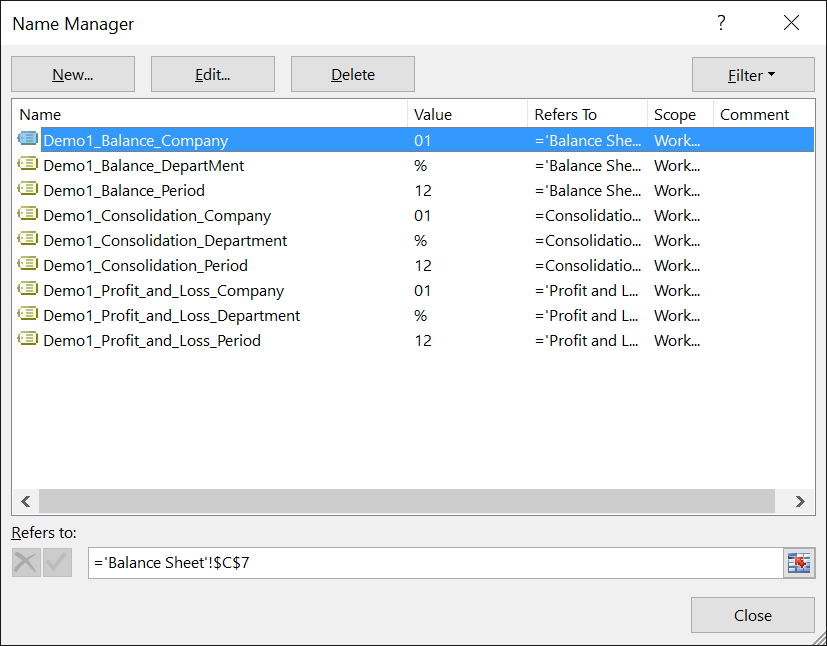
Modify a named range in Excel
- Within the Formulas ribbon toolbar, click on Name Manager
- In the list, click on the name that you want to change
- In the Refers To box, edit the range reference, or drag on the worksheet, to select the new range
- Click Close, to close the Name Manager